
 603-924-9867
When a customer places an order through your website, you may receive a payment notification from PayPal or another payment processor. However, that notification might not include everything you need, such as the customer’s shipping address.
Fortunately, if your website uses WooCommerce, you can find those details directly in your WordPress dashboard. You don’t need to rely on your payment processor for every piece of order information.
Here’s how to find an order, review its details, and locate the customer’s billing and shipping addresses.
Step 1: Log In to Your WordPress Dashboard
Start by logging into your website’s WordPress administration area.
Once logged in, look for WooCommerce in the menu on the left side of your dashboard.
Hover over WooCommerce, then click Orders.
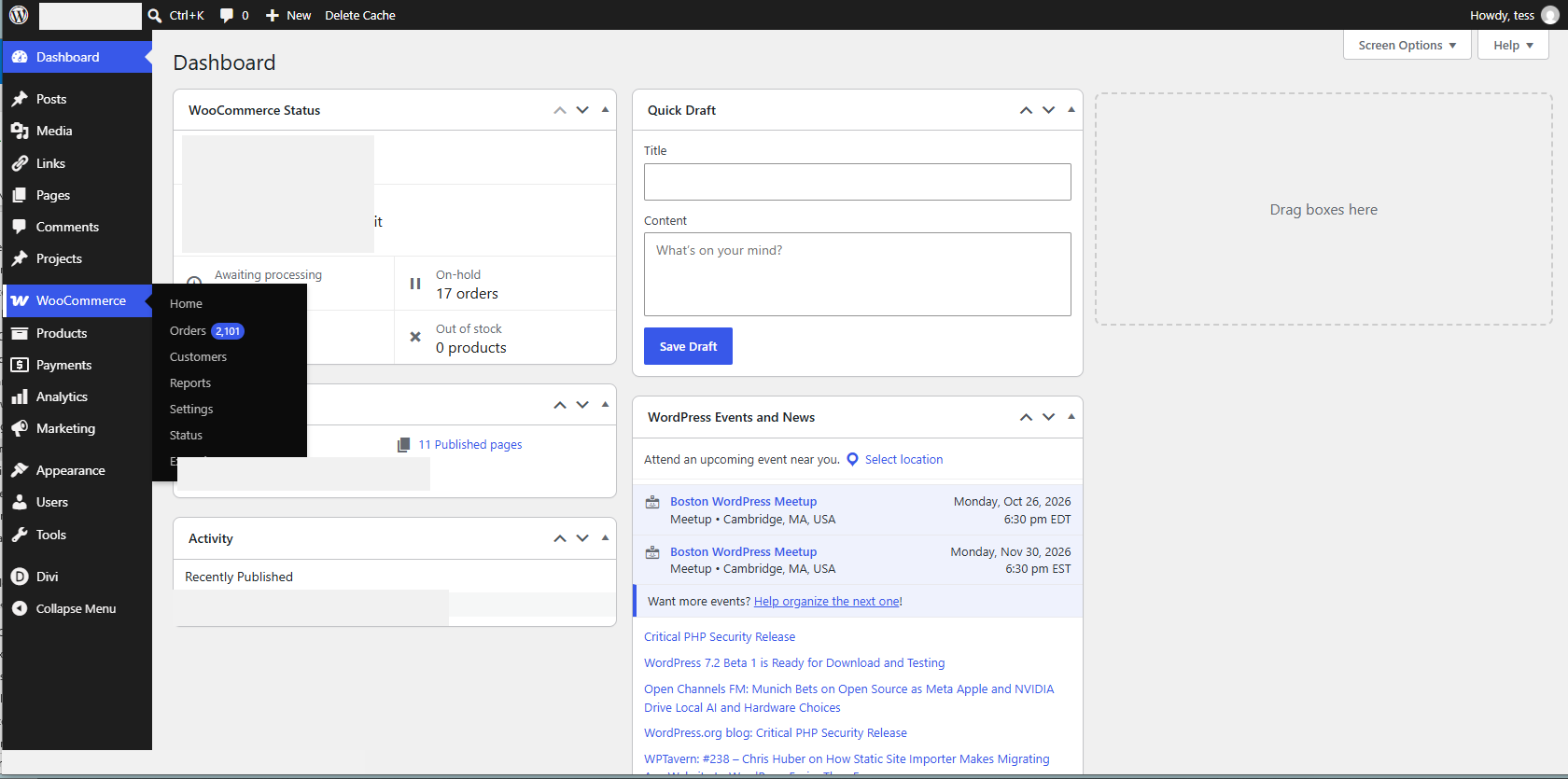
Step 2: Find the Order You’re Looking For
The Orders page displays orders placed through your website. You’ll see order numbers, customer names, dates, payment totals, and order statuses.
If you received an order number from PayPal or another payment processor, enter it into the Search orders field.
Click the matching order to open its details.
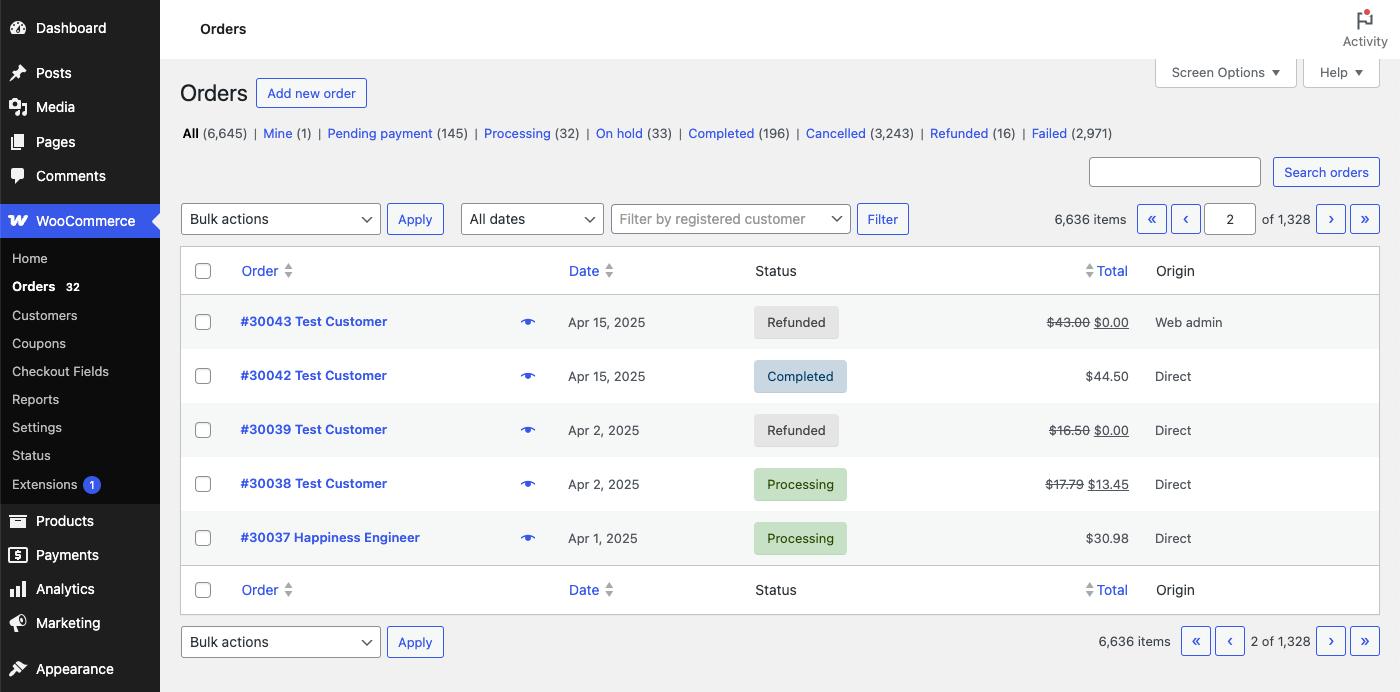
Step 3: View the Customer’s Billing and Shipping Addresses
Once you open an order, WooCommerce displays the customer’s information near the top of the page.
You’ll typically find two sections:
- Billing: The customer’s billing name, address, email address, and phone number.
- Shipping: The name and address provided for delivery.
If you’re preparing to ship a product, use the address in the Shipping section. Remember, billing and shipping addresses aren’t always the same.
You can also review purchased products, quantities, shipping charges, and payment information further down the page.
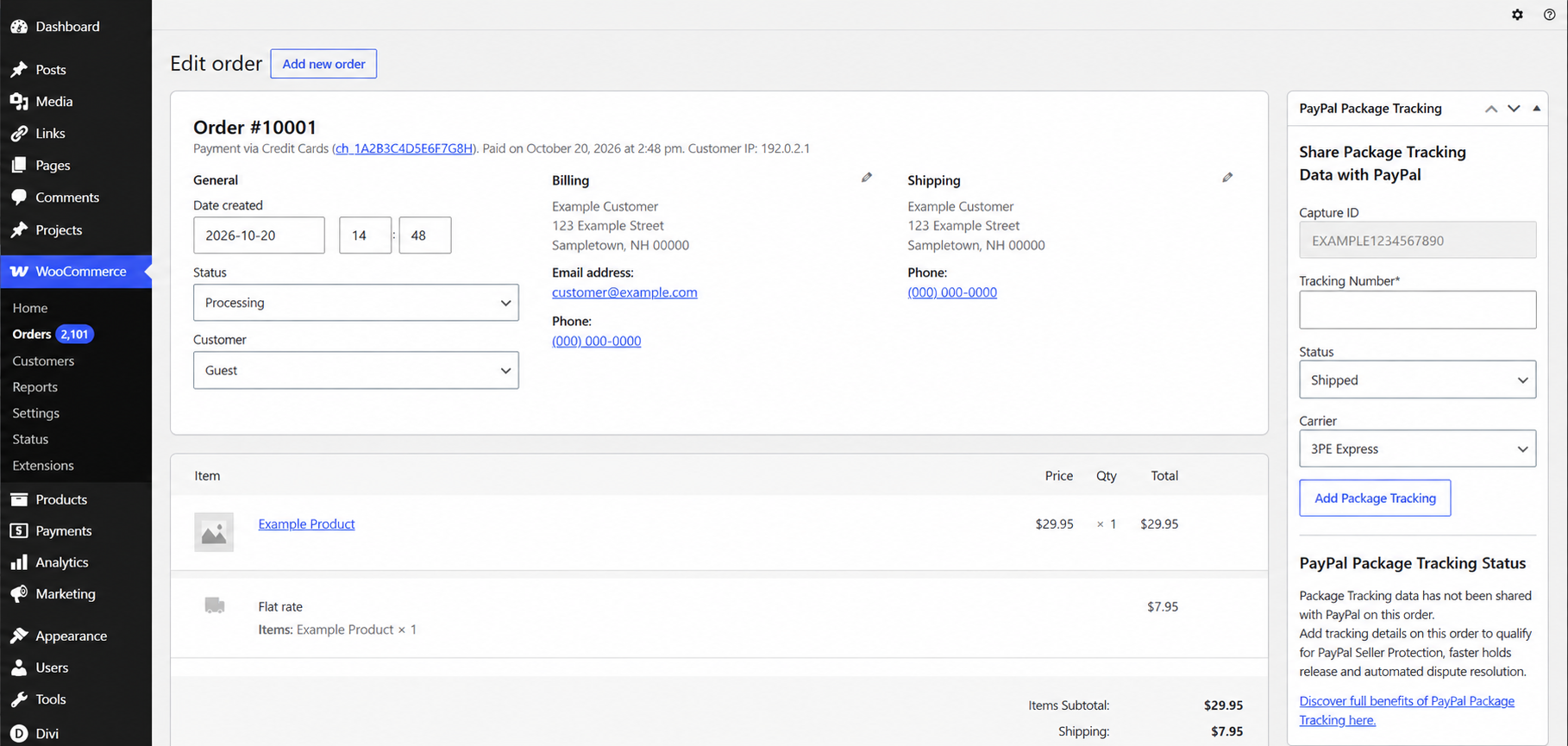
Step 4: Review the Order Status
WooCommerce also shows the current status of each order.
For example, Processing generally means payment has been received and the order is waiting to be fulfilled. On hold may mean payment confirmation or another action is still needed. Completed typically means the order has been fulfilled.
Always verify the payment status before shipping an order. Remember, an order marked Processing doesn’t necessarily mean the product has already shipped.
What If the Shipping Address Is Missing?
Sometimes, an order won’t contain a separate shipping address. This can happen with certain checkout configurations, virtual products, or incomplete customer information.
First, check the Billing section. Then review the order notes for additional details.
If you still can’t find a usable delivery address, contact the customer before shipping. Don’t assume the billing address is correct.
Need Help With WooCommerce?
At CharlesWorks, we help businesses manage their WordPress websites, WooCommerce stores, and other website-related issues.
Whether you’re having trouble finding an order or need assistance with your online store, we’re happy to help.