
 603-924-9867
How criminals use fake call notifications in fake voicemail emails, HTML files, PDFs, images, and QR codes to steal your information.
A Disturbing Increase in Fake Email Messages
Over the past several weeks, I’ve noticed a troubling increase in suspicious emails. Many claim that someone has left a voicemail or attempted to contact me.
Some announce a new call message. Others claim that someone has left an important audio recording. Still others arrive with vague subjects like “support email.”
However, these messages share a particularly concerning characteristic. They frequently contain attachments that the recipient must open to supposedly retrieve the message.
I’ve encountered attachments containing Hypertext Markup Language (HTML), Portable Document Format (PDF) files, and images.
Some even contain scannable Quick Response (QR) codes.
Unfortunately, these innocent-looking attachments can become gateways to elaborate phishing scams.
What My Microsoft Defender Quarantine Reveals
As someone who operates web hosting and email services, I regularly review suspicious email activity.
On November 16, 2026, I captured the following screenshot from my Microsoft Defender quarantine system.
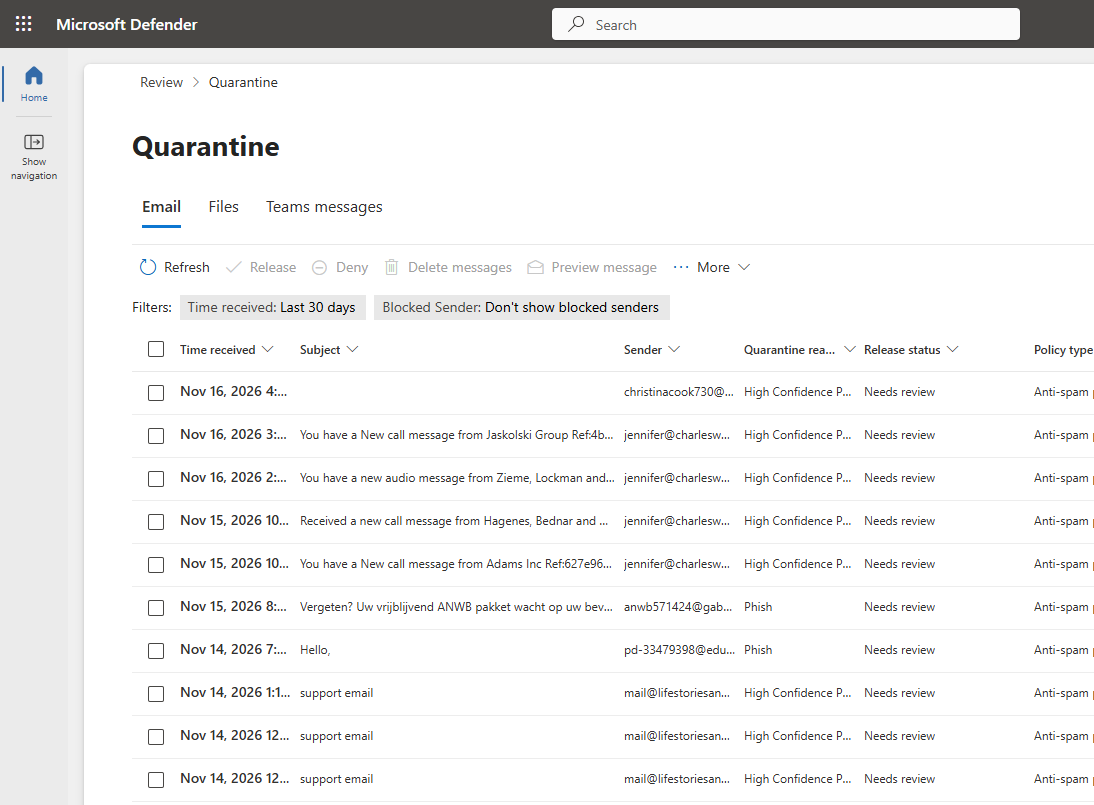
My Microsoft Defender quarantine screen on November 16, 2026.
Notice the repeated fake call notifications and phishing warnings.
Several messages appear to announce new telephone calls or audio recordings.
For example, some subject lines begin with “You have a New call message.” Another announces a new audio message from several supposed individuals.
Microsoft classified numerous messages as “High confidence phishing.” Others received the classification “Phishing.”
These classifications indicate that Microsoft’s email security systems detected significant warning signs.
However, the screenshot alone doesn’t reveal every attachment’s contents or intended destination.
Nevertheless, my examination of similar messages reveals a recurring pattern: unexpected attachments requesting further action.
Why Fake Voicemail Notifications Work
Most of us receive legitimate voicemail notifications occasionally. Therefore, a message announcing a missed call may seem perfectly reasonable.
The scammer depends on that familiarity.
A subject like “You have a new audio message” immediately creates curiosity. Naturally, the recipient wonders who called and what the caller wanted.
Sometimes the subject includes unfamiliar personal names or business names. Other messages contain reference numbers, timestamps, or supposed recording identifiers.
These details make the notification appear more official.
However, the scammer generally wants something entirely different from delivering a voicemail.
The real objective may involve stealing passwords, collecting financial information, or installing unwanted software.
The Attachment Is Often the Real Trap
Traditional phishing emails frequently contain clickable links directly inside their messages.
However, many newer scams place the dangerous material inside an attachment instead.
The email itself might contain only a brief instruction to open the accompanying file.
Consequently, the recipient may believe the attachment represents an ordinary document or audio recording.
Yet that attachment may contain another link, a fake login screen, or a scannable code.
This creates an additional step between the original email and the scammer’s website.
In some cases, that extra step helps the criminals evade security systems.
HTML Attachments: A Particularly Serious Concern
Of the various attachments I’ve encountered, HTML files deserve special attention.
HTML stands for Hypertext Markup Language. It’s the language browsers use to display web pages.
Most people associate HTML with websites. However, someone can also send an HTML file as an email attachment.
When you open that file, your browser may display a locally stored web page.
That page might resemble Microsoft 365, Outlook, a voicemail player, or another familiar service.
The attacker can create a convincing sign-in screen without initially directing you to an obvious website.
Alternatively, the file may automatically redirect your browser to an outside website.
The next page might request your email address and password.
My advice is simple: Never open an unexpected HTML attachment merely to retrieve a supposed voicemail.
Legitimate organizations sometimes send HTML attachments. Nevertheless, an unexpected HTML file deserves independent verification.
A Fake Login Screen Can Look Remarkably Real
Imagine opening an attachment that displays a familiar Microsoft sign-in page.
It contains the company logo, familiar colors, and normal-looking password fields.
The page announces that you must sign in before listening to your message.
You enter your email address and password.
Unfortunately, those details may go directly to criminals rather than Microsoft.
Some phishing pages even imitate multifactor authentication procedures.
They may request a verification code or manipulate a live sign-in session.
Consequently, having multifactor authentication doesn’t make every suspicious login page safe.
It provides valuable protection, but you still need to verify where you’re entering information.
PDF Attachments Are Not Automatically Safe
Many people regard PDF files as relatively harmless documents.
After all, businesses routinely exchange invoices, statements, contracts, and other information using PDFs.
However, a PDF can contain clickable links, images, and instructions directing you to outside websites.
A fraudulent voicemail notification might include a PDF titled “Voice Message Details.”
Inside, the document could display a button labeled “Listen to Recording.”
Clicking that button might open a fraudulent Microsoft 365 login page.
Alternatively, the PDF might contain a QR code accompanied by instructions to scan it.
The PDF itself doesn’t need to install malicious software for the scam to succeed.
Instead, it simply persuades someone to visit the attacker’s website.
That distinction matters because conventional antivirus programs may not identify every dangerous destination.
Why JPG and Other Image Attachments Concern Me
I’ve also encountered suspicious messages containing image attachments, including JPG files.
JPG refers to a common image format developed by the Joint Photographic Experts Group.
Unlike HTML files, ordinary JPG images don’t normally execute website scripts when someone views them.
However, criminals can still use images to deliver dangerous instructions.
For example, an image might resemble a voicemail notice or a document-sharing notification.
It could display a fake sign-in prompt, a misleading website address, or a QR code.
The scam relies on the recipient following those instructions.
Therefore, the danger often comes from what the image persuades someone to do.
A harmless-looking picture can still direct you into a harmful situation.
QR Codes: A Dangerous New Direction
One particularly troubling technique involves QR codes.
QR stands for Quick Response. These square patterns allow phones and other devices to retrieve encoded information quickly.
Most people recognize them from restaurant menus, advertisements, event tickets, and payment systems.
Unfortunately, criminals recognize their usefulness too.
I’ve seen suspicious email attachments containing QR codes that invite recipients to scan them.
Although I haven’t verified every destination, these codes raise serious phishing concerns.
A malicious QR code can direct someone to a fraudulent website.
Security researchers call this technique quishing, combining QR codes with phishing.
How a QR Code Phishing Attack Works
Suppose someone receives an email claiming that an important voicemail awaits them.
The email includes a PDF attachment.
Inside, a message says the recording requires mobile verification.
A large QR code appears beneath the instructions.
The recipient opens the phone’s camera and scans the code.
Next, the phone displays a website address.
If the person follows that address, a convincing login page might appear.
The page requests a Microsoft password or another account credential.
Unfortunately, the unsuspecting recipient may provide exactly what the criminal wants.
The entire process can happen without clicking a traditional email link.
Why Moving the Attack to a Phone Matters
Many businesses protect their computers with email filtering, antivirus programs, and other safeguards.
However, their employees may scan suspicious codes using personal smartphones.
This moves the interaction from the protected computer to another device.
Additionally, phone screens make long website addresses difficult to examine.
A fraudulent address might resemble Microsoft’s website while using a completely different domain.
The recipient may focus on the familiar login screen instead of the actual address.
Consequently, the attacker gains another opportunity to hide the deception.
Never assume a QR code becomes safe simply because your smartphone recognizes it.
Microsoft Confirms These Attachment-Based Attacks
This problem extends well beyond the suspicious emails I’ve personally encountered.
Microsoft published an email threat report on November 5, 2026.
That report examined malicious email activity during the third quarter of 2026.
According to Microsoft, HTML and PDF attachments remained major delivery methods for malicious content.
The report also found that credential theft dominated attachment-based attacks.
In other words, criminals often wanted passwords rather than installing traditional computer viruses.
Microsoft also documented phishing campaigns involving QR codes inside PDF attachments.
These findings closely match the kinds of suspicious messages I’ve been seeing.
Why So Many Messages Look Similar
Another interesting characteristic involves the repetition of subject lines and message formats.
As my screenshot illustrates, several suspicious messages use nearly identical wording.
Different supposed callers appear in the subjects, but the underlying theme remains the same.
That’s often consistent with automated phishing campaigns.
Criminals can generate thousands of messages while changing names, identifiers, and other details.
Additionally, they may switch email accounts or sending domains.
This makes blocking one particular sender less effective.
However, similar wording alone doesn’t prove that every message belongs to the same criminal operation.
The Sender’s Address May Also Mislead You
Many people inspect the sender’s email address before deciding whether to trust a message.
That’s a good habit, but it doesn’t provide complete protection.
Criminals sometimes forge sender information to make messages appear legitimate.
Others gain control of real email accounts and send malicious messages through them.
Consequently, an email might appear to originate from someone you actually know.
Even an address resembling your company’s domain doesn’t guarantee that the message is genuine.
The address could reflect spoofing, an unauthorized account, or another delivery mechanism.
Only a closer investigation can establish what happened.
Therefore, I recommend verifying unexpected requests through a separate, trusted communication method.
Watch for These Warning Signs
When examining suspicious email, I look for several common warning signs.
Unexpected attachments: An ordinary notification arrives with a file you didn’t request.
Unfamiliar callers: The email mentions people or businesses you don’t recognize.
Vague subjects: Messages contain phrases like “New call message” or “support email.”
Unusual file types: A supposed audio recording arrives as HTML, PDF, or an image.
Login requests: The attachment insists that you sign in before viewing its contents.
QR codes: The message asks you to scan a code to retrieve information.
Artificial urgency: The sender claims you must act immediately or risk losing access.
Suspicious addresses: The sender’s address doesn’t match the organization it supposedly represents.
However, sophisticated phishing emails may contain none of the traditional spelling or grammar mistakes.
Some look remarkably professional.
A Familiar Logo Proves Very Little
One of the easiest ways to fool someone involves displaying a familiar company logo.
Microsoft, Google, banks, delivery services, and other recognizable organizations frequently appear in phishing campaigns.
A criminal can copy a company’s branding with very little effort.
They can also imitate website layouts, colors, and buttons.
Consequently, a beautiful, professional-looking attachment may still be fraudulent.
Even a website displaying the familiar padlock symbol can belong to criminals.
That symbol indicates an encrypted connection. It doesn’t establish the website owner’s honesty.
Always examine the actual website address and verify the request independently.
What I Recommend When You Receive One
First, resist the temptation to open the attachment.
Don’t scan an included QR code either.
Next, examine the message’s subject and sender without interacting with suspicious content.
Ask yourself whether you’re expecting the particular communication.
If the email supposedly comes from a familiar company, contact that company independently.
Use its known website, saved bookmark, official application, or verified telephone number.
Never rely on contact information supplied exclusively by the suspicious message.
If a voicemail is legitimate, you can often retrieve it through the provider’s normal application.
You shouldn’t need an unexpected HTML attachment to prove a call occurred.
Don’t Trust the Attachment’s File Name
Criminals can name attachments almost anything.
A file named “voicemail” may not contain audio.
Similarly, “invoice” doesn’t guarantee a legitimate financial document.
Some file names deliberately combine extensions to mislead users.
For example, a file named voicemail.pdf.html is actually an HTML file.
Windows may hide recognized file extensions depending on its settings.
Consequently, the visible name may conceal the actual file type.
However, even a correctly named PDF or JPG can contain malicious instructions or links.
I recommend avoiding unexpected attachments altogether until you verify their legitimacy.
What About Antivirus and Email Filtering?
Fortunately, modern email providers offer increasingly sophisticated phishing protection.
Microsoft Defender, for example, can quarantine suspicious messages before they reach ordinary inboxes.
My screenshot illustrates that protection in action.
Messages classified as high-confidence phishing or phishing appear in the quarantine area.
However, no filtering system catches everything.
Attackers constantly change their messages, attachments, sending addresses, and fraudulent websites.
Some legitimate messages can also trigger false alarms.
Therefore, businesses need both technical protection and informed users.
Technology provides an important first defense. Human judgment remains another essential layer.
Why I Wouldn’t Release These Quarantined Messages
Microsoft Defender allows administrators to review quarantined email.
However, that doesn’t mean every suspicious message deserves release.
In particular, messages classified as high-confidence phishing warrant considerable caution.
Microsoft restricts ordinary users from releasing certain dangerous messages.
Administrators can investigate suspicious emails and report incorrect classifications.
Nevertheless, I wouldn’t release an unexpected voicemail attachment merely because someone wondered what it contained.
If a legitimate business message appears in quarantine, verify it independently before approving delivery.
The goal is to protect users without unnecessarily blocking genuine correspondence.
What If You Already Opened an Attachment?
First, don’t panic.
Opening an attachment doesn’t automatically mean your computer or account has been compromised.
The actual risk depends on the file, your software, and what happened afterward.
Did the attachment display a website?
Or did you click another link?
Did you download or run additional software?
Most importantly, did you enter any passwords, verification codes, or financial information?
These details help determine the appropriate response.
However, if an attachment behaved unexpectedly, close the suspicious content and contact a trusted technician.
Don’t continue interacting with the page to find out what happens next.
What If You Entered Your Password?
This situation requires immediate attention.
First, visit the legitimate service using a known website or official application.
Preferably, use a different, trusted device if you suspect malware.
Change the affected account password immediately.
Also change passwords for other accounts that share those credentials.
Next, enable multifactor authentication if you haven’t already.
However, remember that sophisticated attacks can sometimes steal authenticated sessions.
Therefore, sign out of other sessions and revoke active sessions where your provider supports that action.
Review account recovery information, connected applications, and recent login activity.
For email accounts, inspect forwarding rules and other settings for unauthorized changes.
Finally, notify your email administrator or technical support provider.
What If You Scanned a Suspicious QR Code?
Simply scanning a QR code doesn’t necessarily compromise your phone.
Many phone cameras display the destination address before opening it.
However, following a malicious link creates additional risks.
If you opened the website, stop interacting with it.
Don’t enter passwords, payment details, or verification codes.
If you already supplied sensitive information, take immediate protective action.
Change exposed passwords through the legitimate service.
Also examine relevant bank and credit card activity if financial information was involved.
Keep your phone’s operating system and applications updated.
If the website caused a download or other suspicious behavior, obtain professional assistance.
What If You Downloaded or Ran Something?
Downloading a file doesn’t always produce an infection.
However, running unknown software or following suspicious installation instructions can create serious problems.
If you suspect malware, stop using the device for sensitive activities.
Disconnect it from the network if you suspect active compromise.
Then contact your technical support provider or security administrator.
Use updated security software to perform a thorough scan.
However, a clean scan doesn’t prove that every possible threat has disappeared.
Some infections require additional investigation, recovery, or even a complete system rebuild.
Businesses should also examine whether other computers or accounts face exposure.
Why Reporting Suspicious Messages Helps
Many people simply delete suspicious messages and continue working.
That’s understandable, but reporting them can provide additional protection.
For example, supported versions of Microsoft Outlook offer a “Report phishing” option.
That feature helps identify suspicious email for further analysis.
Other email services provide similar reporting tools.
If a message reaches your business inbox, notify your email administrator.
Administrators can inspect delivery information and look for similar messages.
They may also block malicious senders, attachments, or websites.
However, criminals frequently change their infrastructure, so blocking one address rarely solves everything.
Where You Can Report Phishing
The Federal Trade Commission accepts reports of scams and attempted fraud.
You can submit a report here:
The Anti-Phishing Working Group also collects reports of phishing emails.
Its reporting address is:
For Microsoft 365 users and administrators, the Defender security portal provides quarantine management tools.
https://security.microsoft.com/quarantine
Use your provider’s built-in reporting function when possible.
When reporting to a third party, avoid needlessly distributing suspicious attachments to other people.
What Businesses Should Do to Reduce Their Risk
Businesses should combine technical safeguards with regular employee education.
First, maintain effective spam filtering, phishing detection, and attachment scanning.
Next, keep operating systems, browsers, and document readers updated.
Require strong, unique passwords and multifactor authentication.
Where possible, consider phishing-resistant authentication methods, such as passkeys or hardware security keys.
Additionally, configure email authentication using Sender Policy Framework, DomainKeys Identified Mail, and Domain-based Message Authentication, Reporting, and Conformance.
These technologies help receiving mail servers evaluate whether messages legitimately represent their claimed domains.
However, email authentication doesn’t guarantee that a message’s contents are safe.
A criminal can still send phishing from an authenticated domain they control.
Businesses should also establish clear procedures for reporting suspicious messages.
Most importantly, employees should feel comfortable asking questions before opening unexpected attachments.
A Simple Rule That Can Prevent a Major Problem
I’ve worked with computers, electronics, communications, and internet services for many years.
During that time, I’ve watched criminals continually change their methods.
However, one underlying principle remains surprisingly consistent.
They need someone to trust something they shouldn’t.
Sometimes that’s a fake invoice.
Other times, it’s a supposed delivery notification, an urgent account warning, or a voicemail attachment.
Today, it may even be a QR code inside an innocent-looking photograph.
The technology changes, but the deception remains familiar.
If an unexpected email asks you to open an attachment, stop and verify it first.
That small precaution can prevent a great deal of trouble.
My Final Thoughts
The recent collection of suspicious emails in my Microsoft Defender quarantine concerns me.
The repeated fake voicemail notifications suggest that criminals continue exploiting ordinary business communications.
However, the attachment formats make these messages particularly deceptive.
An HTML file can imitate a login page. A PDF can conceal misleading links.
Even an image can contain instructions or QR codes directing people to fraudulent websites.
Unfortunately, people often trust familiar document formats more than they should.
My purpose in sharing this information isn’t to discourage legitimate email communication.
Instead, I want readers to recognize suspicious activity before making a costly mistake.
Please share this warning with family members, friends, coworkers, and anyone who regularly uses email.
A little awareness can go a long way.
And remember: Just because an attachment looks familiar doesn’t mean it deserves your trust.
Additional Resources and References
For readers interested in learning more, I recommend these resources.
Microsoft Security — Email Threat Landscape, Third Quarter 2026
Microsoft — Phishing Trends and Techniques
https://learn.microsoft.com/en-us/defender-endpoint/malware/phishing-trends
Federal Trade Commission — Protect Yourself From Phishing Scams
https://consumer.ftc.gov/consumer-alerts/2025/04/protect-yourself-phishing-scams
Federal Trade Commission — Scammers Hide Harmful Links in QR Codes
Federal Trade Commission — What to Do if You Were Scammed
https://consumer.ftc.gov/articles/what-do-if-you-were-scammed
Microsoft — Quarantined Messages Frequently Asked Questions
https://learn.microsoft.com/en-us/defender-office-365/quarantine-faq
Charles Oropallo founded CharlesWorks in 1998. CharlesWorks provides domain registration, website hosting, email services, web development, and search engine optimization. We also help individuals and businesses understand online security threats and protect their digital resources.
Visit https://charlesworks.com/ for more information and educational resources.